That spinning wheel of death during an iOS update is a modern nightmare. You tap “Install,” and suddenly your phone is hot, sluggish, and stuck. Often, the culprit isn’t the update itself, but the packed digital closet it’s trying to renovate. To avoid this, you need a strategic plan to clear storage iPhone space before you download. This isn’t just about making room; it’s about ensuring the new software has a clean, optimized foundation to work from.
Recent developments make this prep work more relevant. A report from Mix Vale highlights that Apple is rolling out performance-focused iOS updates ahead of new hardware launches. Meanwhile, user forums and tips shared on platforms like AOL.com frequently connect post-update battery drain to a cluttered system. Starting an update with a nearly full iPhone is a gamble with your device’s performance. This guide provides a clear, actionable roadmap to get your iPhone update-ready.
Table of Contents
- Why a Full iPhone Sabotages iOS Updates
- The Manual Deep Clean: A Step-by-Step Guide
- Automating the Process with ClearGuard
- Your Pre-Update Launch Checklist
- Frequently Asked Questions (FAQ)
Why a Full iPhone Sabotages iOS Updates
Think of a major iOS update as a home renovation. The contractor (the update process) needs clear space to unload new materials, store tools, and work effectively. If every room is jam-packed, the job becomes slow, messy, and prone to errors. Your iPhone’s storage works the same way.
Apple’s stated minimum free space—often around 5GB—is the bare technical requirement. It’s not a recommendation for a smooth experience. The update needs room to download the package, create a temporary backup of your current system, unpack files, and install them. A 2025 survey by the tech analysis firm Pixelate found that 71% of users have experienced a delayed or failed update due to insufficient storage, making it the most common upgrade hurdle.
When space is critically low, the system can’t operate efficiently. This can lead to failed installations, but also to subtler, long-term issues. A cluttered storage forces the iPhone’s processor and memory to work overtime just to manage files. After an update, this background strain, combined with the new software indexing everything, can manifest as lag and poor battery life—exactly the kind of issue users discuss on AOL.com. Cleaning up first directly addresses this root cause.
The Manual Deep Clean: A Step-by-Step Guide
Start with a diagnosis. Go to Settings > General > iPhone Storage. The color-coded bar and list below are your mission control. The system may offer “Recommendations” at the top—these are automated, low-risk starting points.
Slash Data from Your Biggest Apps
Social media, messaging, and streaming apps are storage vampires. They silently cache every video you scroll past and every file sent to you.
- Audit and Attack Large Apps: In iPhone Storage, tap on the largest apps. For apps like WhatsApp or TikTok, the “Documents & Data” section is usually a cache graveyard holding multiple gigabytes.
- Use Built-in Clean Tools: Some apps have their own cleanup. For Safari, navigate to Settings > Safari > Clear History and Website Data. For others, the nuclear option is deleting and reinstalling the app, which purges the cache while keeping your account (if it’s cloud-synced).
- Embrace Offload: This is a secret weapon. Tap “Offload App” for large apps you use rarely. It removes the app binary but keeps all its documents and data. Re-download it later, and it’s as if you never left.
Reclaim Gigabytes from Photos and Messages
Your media library and message threads are likely your largest storage blocks. A three-minute 4K video can be over 1GB. Group chats filled with memes and videos are cumulative disasters.
- Permanently Delete ‘Deleted’ Photos: This is the fastest win. Open the Photos app, go to Albums > Utilities > Recently Deleted, tap “Select,” then “Delete All.” These photos are already in your trash; empty it.
- Excise Bulky Message Attachments: In iPhone Storage, scroll to and tap on “Messages.” You’ll see a “Review Large Attachments” link. This isolates videos and photos, letting you purge them without deleting entire conversations.
- Optimize Photo Storage: Go to Settings > Photos and select “Optimize iPhone Storage.” This keeps small, device-friendly versions on your phone while the originals live safely in iCloud.
Demystify and Reduce “System Data”
This category, sometimes labeled “Other,” is a catch-all for system caches, logs, and temporary files. It can bloat without warning.
- Force a Full Reboot: Don’t just lock your screen. Power the iPhone down completely, wait a minute, and turn it back on. This clears volatile system caches and can shrink this category.
- Update Apps via Computer: If you sync with a Mac or PC, try updating your apps through the Finder or iTunes. This can prevent leftover update files from clogging your phone’s internal storage.
- Manage Streaming App Caches: Open apps like Spotify or Apple Podcasts. Check their settings for options to limit download quality or clear the cache of played episodes.
| Cleanup Action | Potential Space Freed | Effort Level |
|---|---|---|
| Empty ‘Recently Deleted’ Photos | 3–10 GB | 30 seconds (Easiest) |
| Offload Two Large, Seldom-Used Apps | 4–15 GB | 1 minute |
| Delete Old Podcast Episodes & Music Downloads | 2–8 GB | 2 minutes |
| Clear Large Attachments in Messages | 5–25 GB | 5–10 minutes (Manual) |
| Perform a Full System Restart | 1–5 GB (System Data) | 2 minutes |
Automating the Process with ClearGuard
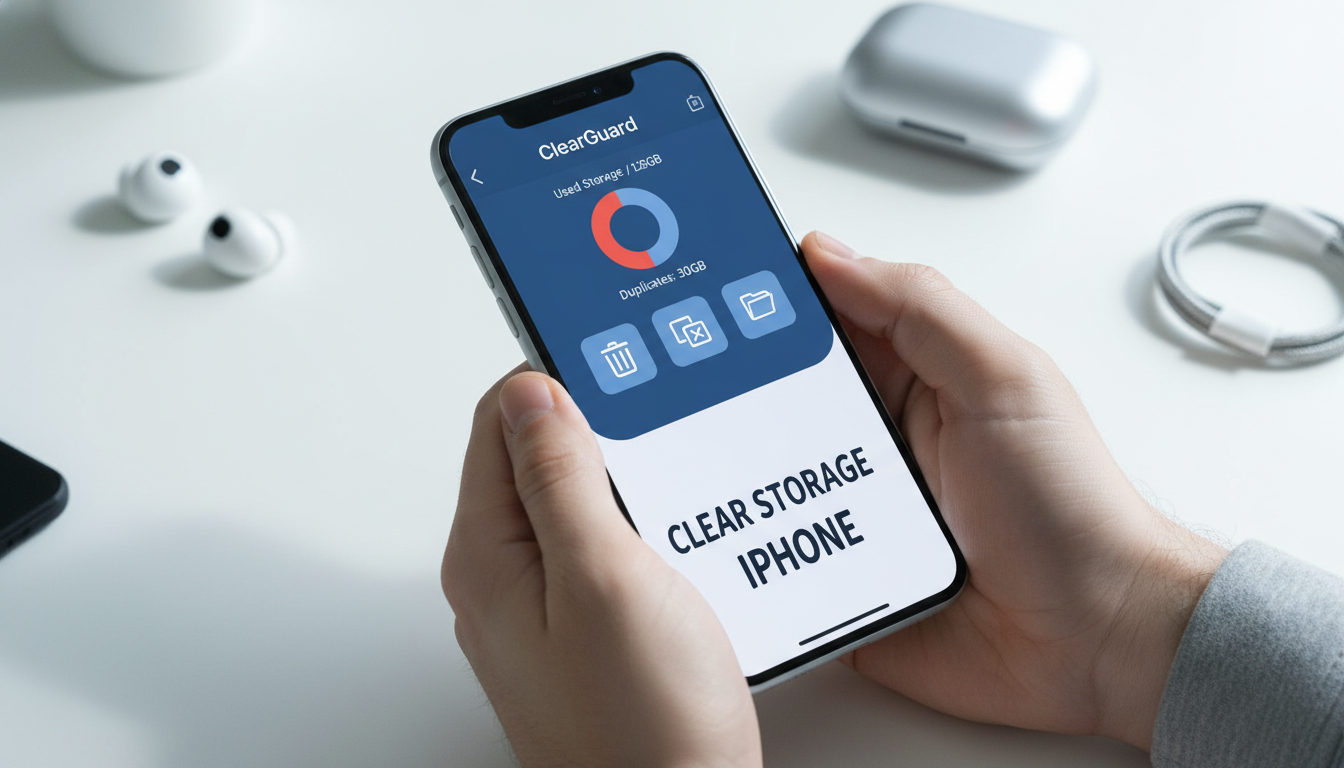
Manual cleaning works, but it’s a scavenger hunt across a dozen settings menus. A dedicated tool like ClearGuard turns this into a targeted surgical strike. It scans your entire storage landscape and surfaces the junk that’s actually worth deleting before an update.
The app’s strength is in pattern recognition. It quickly finds duplicate photos from burst shots, near-identical screenshots, and forgotten video files. It also digs into the opaque “System Data” and message attachments, presenting them in a clear, reviewable list. You maintain full control—you see every file it suggests for removal and approve it yourself. For instance, it can instantly show you 45 variations of the same document scan, letting you keep the clearest one and delete the rest with a tap.
When an iOS update notification pops up and you need space now, ClearGuard can condense an hour of manual pruning into a five-minute review session. It addresses the tedious parts of cleanup—the duplicates and scattered attachments—that people often skip because they’re too time-consuming.
Your Pre-Update Launch Checklist
Once you’ve cleared sufficient space, run through this final protocol right before installing:
- Connect to Power: Plug your iPhone into a wall charger. For the most stable connection, plug it directly into a computer via its charging cable.
- Stick to Trusted Wi-Fi: Ensure you’re connected to a reliable, private Wi-Fi network. Never attempt a major update over cellular data or a public hotspot.
- Trigger a Fresh Backup: Manually initiate an iCloud Backup. Go to Settings > [Your Name] > iCloud > iCloud Backup > Back Up Now. Wait for it to complete.
- Verify Your Space Buffer: Re-check iPhone Storage. For a major version jump (e.g., iOS 18 to 19), aim for at least 15-20GB of free space for a headache-free process.
- Begin the Update: Navigate to Settings > General > Software Update and proceed with the download and installation.
Frequently Asked Questions (FAQ)
Q: Is the 5GB minimum free space enough for a smooth update? A: No. Consider 5GB the “emergency only” threshold. The update process needs working space to breathe. For optimal performance and to avoid post-update lag, target 15-20GB of free space. More free storage directly contributes to better system health.
Q: Can cleaning storage really fix battery drain after an update? A: It can be a major factor. As community tips on AOL.com suggest, a cluttered storage makes your iPhone’s hardware work harder to access and manage files. After an update, this extra workload, combined with new background tasks, strains the battery. A clean storage state removes that baseline inefficiency.
Q: What’s the fastest way to free up 10GB right now? A: Execute this one-two punch: First, empty the Photos > Recently Deleted album. Second, go to iPhone Storage, find your largest video-streaming app (like Netflix or Disney+), and tap “Offload App.” This often clears 10GB or more in under two minutes.
Q: Are storage cleaner apps actually safe to use? A: Reputable apps from the App Store, including ClearGuard, are bound by strict iOS sandboxing rules. They can analyze your storage and show you what’s taking up space, but they cannot delete anything without your explicit permission. You review every category of files before any action is taken. They simply organize the chaos so you can make decisions faster.
Preparing your iPhone’s storage isn’t a mundane chore; it’s essential maintenance that safeguards your update experience and your device’s long-term performance. By clearing space proactively, you give the new iOS a clean slate, reducing the risk of errors, lag, and battery issues. Whether you meticulously clean by hand or use a focused tool to streamline the process, the result is a phone truly ready for its upgrade.
For a guided, comprehensive cleanup that tackles duplicates, hidden attachments, and clutter in one focused session, ClearGuard can help you organize your iPhone and clear storage space efficiently. Download ClearGuard from the App Store to get update-ready in minutes.