You can reclaim significant storage and speed by deleting the useless files WhatsApp silently hoards. The most effective method is using a dedicated iOS file cleaner app to automate the tedious, deep cleaning manual steps miss. This guide provides the exact steps and explains why this process is critical for maintaining performance, especially as iOS updates place greater emphasis on system efficiency.
Table of Contents
- Why WhatsApp Chokes Your iPhone’s Performance
- Step-by-Step Manual Cleanup Guide
- The Limits of Manual Cleaning
- Automating Cleanup with a Specialized Tool
- Maintaining Performance Long-Term
- Frequently Asked Questions (FAQ)
Why WhatsApp Chokes Your iPhone’s Performance
WhatsApp functions as a constant, passive storage accumulator. Its default behavior is to download and save every image, video, and document you receive. A single active group chat can generate gigabytes of identical files saved multiple times for each participant.
This clutter extends beyond media you intentionally save. It includes profile picture changes, document previews, and voice message caches. These files build up invisibly, with no clear indicator in your daily use.
The impact is direct and measurable. A phone nearing full storage operates slower because the iOS file system struggles. App launches lag, animations stutter, and overall responsiveness drops. Cleaning this digital detritus is a proven performance boost.
Research underscores this issue. A 2025 report by Statista found that over 65% of smartphone users identify messaging apps as a primary cause of storage shortages. Furthermore, performance tests by Macworld showed that iPhones with under 1GB of free space experienced app launch delays up to 30% longer than those with ample free space.
Common symptoms include:
- WhatsApp freezing when scrolling through chats.
- The camera failing to open because there’s no room for a new photo.
- General system sluggishness when switching between apps.
- Persistent “Storage Almost Full” warnings disrupting your workflow.
Step-by-Step Manual Cleanup Guide
Taking manual control is a good first step to understand the scale of your clutter. Always start by securing your chat history. Go to WhatsApp > Settings > Chats > Chat Backup and run a backup to iCloud.
1. Perform a Storage Audit
Open WhatsApp and navigate to Settings > Storage and Data > Manage Storage. This screen ranks your conversations by the space they consume. You’ll likely find a few group chats are responsible for the majority of the bloat.
2. Bulk Delete “Forwarded Many Times” Media
In the ‘Manage Storage’ section, tap the “Forwarded Many Times” filter. This isolates the most common viral images and videos—the digital junk mail. You can select and delete these en masse, which often clears several gigabytes of low-value data instantly.
3. Disable Auto-Download to Prevent Future Clutter
Stop the problem at its source. Go to Settings > Storage and Data > Media Auto-Download.
- For ‘When Using Mobile Data,’ set all media types to ‘None.’
- For ‘When Connected on Wi-Fi,’ consider allowing only ‘Photos.’ This forces you to manually tap to download videos and documents, giving you full control over what gets saved permanently.
4. The Nuclear Reset: Offload or Reinstall
For a deeper cache clear, use iOS system tools. Go to Settings > General > iPhone Storage, find WhatsApp, and you have two options:
- Offload App: This removes the app but keeps its documents and data. It can sometimes resolve corruption.
- Delete App: This removes everything. You then reinstall from the App Store and restore your chat history from your iCloud backup.
| Action | Primary Benefit | Key Limitation |
|---|---|---|
| Storage Audit | Identifies the largest storage-hogging chats. | Purely informational; requires separate deletion steps. |
| Delete Forwarded Media | Quickly removes high-volume, low-importance files. | Does not address personal media duplicates. |
| Adjust Auto-Download | Prevents future automatic storage accumulation. | Has zero impact on gigabytes of existing files. |
| Offload/Delete App | Provides a fresh start by clearing app cache. | Time-consuming; requires a verified backup and re-login. |
The Limits of Manual Cleaning
While manual methods help, they are fundamentally incomplete. They address surface-level clutter but miss the systemic waste degrading your iPhone’s performance.
The core problem is duplicate files. WhatsApp saves a photo. You save it to your Camera Roll. You send it to another chat, where it’s saved again. Manually finding these identical copies across different albums and app folders is nearly impossible.
The process is also a significant time investment. Reviewing thousands of files individually is tedious. Most people give up before finishing, leaving the majority of clutter untouched.
Finally, this approach is myopic. WhatsApp is just one contributor. Your iPhone collects cache from Safari, mail attachments, old message threads, and residual files from apps you deleted years ago. Focusing on one app ignores the interconnected nature of storage slowdowns.
Automating Cleanup with a Specialized Tool
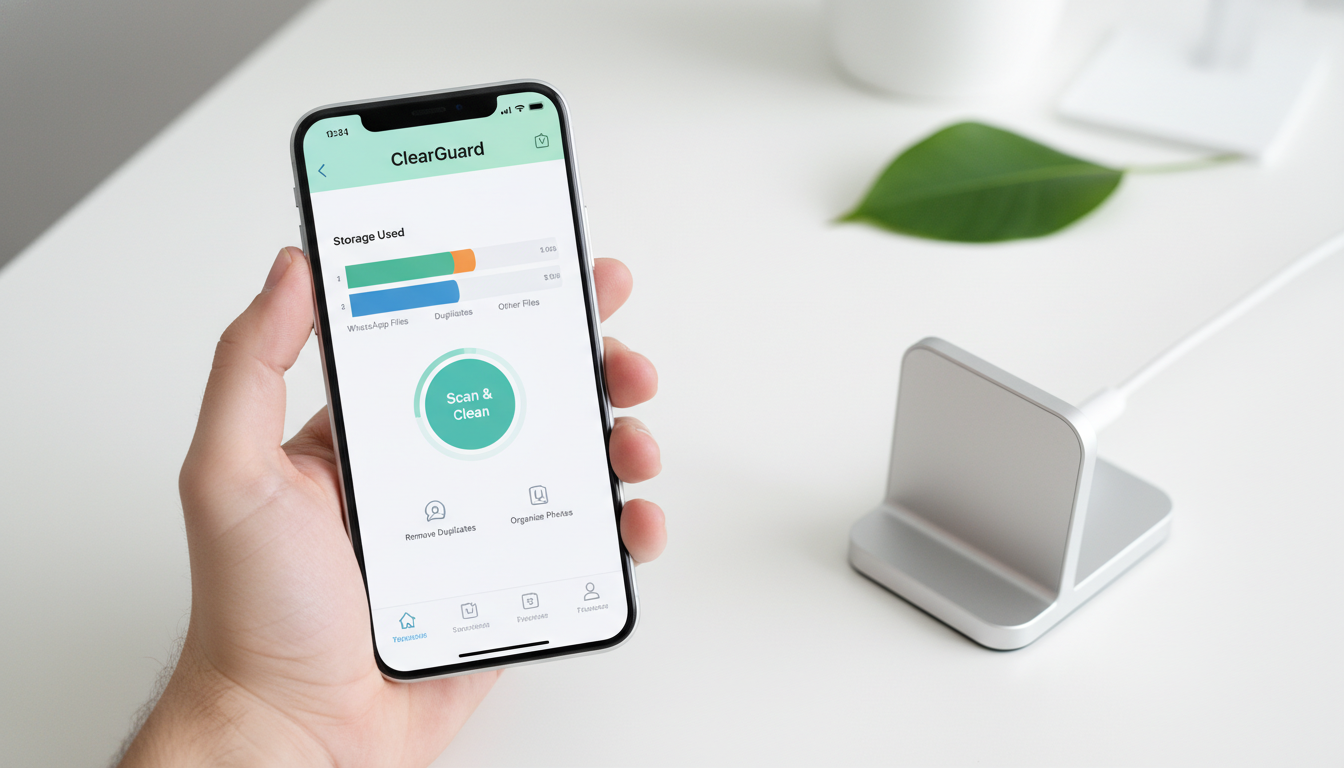
A dedicated utility transforms this overwhelming chore into a simple, systematic process. An iOS file cleaner app is engineered to scan your entire storage system, identifying categories of waste that manual methods cannot efficiently find.
Tools like ClearGuard perform a comprehensive analysis, targeting:
- Exact duplicate photos and videos scattered across your Photos library and app sandboxes.
- Similar images, such as burst shots or multiple takes of the same subject.
- Large, forgotten files buried in your “Files” app or within other document directories.
- App cache and temporary data from across the system, not just WhatsApp.
The advantage is profound efficiency and thoroughness. A complete scan concludes in minutes. It presents you with a clear, organized list of reclaimable space. You approve every deletion, but the hard work of identification is done for you.
This strategy aligns with the evolving focus of iOS. As noted in recent coverage from Mix Vale, Apple’s updates are increasingly prioritizing underlying performance and security. A clean, uncluttered file system allows these low-level optimizations to function at their best.
For WhatsApp specifically, a dedicated cleaner correlates data across your device. It can show you that the same 2GB video file exists in your WhatsApp folder, your Photos library, and your Downloads. You can then safely delete the redundant copies, recovering space without the fear of losing anything unique.
Maintaining Performance Long-Term
A one-time cleanup is powerful, but building smart habits prevents the problem from returning.
1. Establish a Bi-Monthly Storage Review. Open Settings > General > iPhone Storage. Let it load, then:
- Delete any app you haven’t opened in the past month.
- For apps like Instagram or Facebook with massive “Documents & Data,” offload them (which clears cache) or delete and reinstall.
2. Actively Manage Your Photos.
- Regularly visit the “Duplicates” album in the Photos app (iOS 16+).
- Search for “Screenshots” and “Screen Recordings” every few weeks to purge them.
- Enable Optimize iPhone Storage in your iCloud Photo settings.
3. Automate Message Cleanup. Navigate to Settings > Messages > Keep Messages. Change this setting from “Forever” to “30 Days” or “1 Year.” This automatically purges old text threads and their often-large attachments, a hidden storage sinkhole.
4. Schedule a Quarterly Deep Clean. Set a recurring reminder. Use a tool like ClearGuard to run a full system scan every three months. This catches the slow creep of duplicate downloads and app cache that daily use inevitably creates, ensuring your phone never approaches a critical performance threshold.
Frequently Asked Questions (FAQ)
Q: Will cleaning these files delete my WhatsApp messages? A: No, if done correctly. Deleting media files and cache does not touch your text-based chat history. The key is to use WhatsApp’s built-in storage manager or a reputable cleaner app that distinguishes between attachments and conversations. Always have a current iCloud backup as a safety net.
Q: How much faster will my iPhone actually feel? A: The difference is most noticeable on devices that were severely clogged. Users commonly report faster app switching, smoother scrolling, and quicker photo saves. The performance gain comes from freeing up the system’s working space, allowing iOS to operate without constant storage management overhead.
Q: Are these cleaner apps a privacy risk? A: Legitimate apps on the App Store, including ClearGuard, operate within Apple’s strict privacy sandbox. They analyze file metadata—like size, date, and checksums—to identify duplicates. They do not upload your personal files, read your messages, or access email content. You see and approve every item before deletion.
Q: I cleared space, but my phone still lags sometimes. Why? A: Storage is one major factor. Also check your iOS version is up-to-date, as updates often contain performance patches. Restart your phone weekly. Review Settings > Battery > Battery Health; a severely degraded battery can cause system throttling. Finally, limit Background App Refresh for apps that don’t need it.
Freeing your iPhone from WhatsApp’s hidden weight is a direct upgrade to its responsiveness and reliability. Manual methods offer a starting point, but a dedicated iOS file cleaner app provides the complete, lasting solution by addressing clutter across your entire device.
ClearGuard simplifies a daunting task into a few taps, identifying the duplicates and forgotten files that truly slow you down.
Ready to reclaim your storage and restore your iPhone’s performance?