Your iPhone’s next big update is coming, and your cluttered storage is its biggest enemy. The single best way to avoid failed installations, lag, and the notorious post-update battery drain is to proactively clean up iPhone storage before you download a single byte. Free space isn’t just for photos; it’s the critical foundation for a smooth, secure, and stable installation.
Recent tech chatter confirms this. According to a report from Mix Vale, Apple is emphasizing performance and security refinements in recent iOS updates. A phone choked with data can’t properly apply these crucial optimizations. Meanwhile, users are swapping tips, with a hack highlighted by AOL.com gaining traction: a thorough storage cleanup is a frontline defense against the battery drain that often follows an update. A lean system lets new software integrate without a fight.
This is your complete, tactical guide to reclaiming gigabytes and prepping your device for its next evolution.
Table of Contents
- Why a Full iPhone Sabotages Updates
- The Strategic Manual Cleanup
- Automating the Heavy Lifting with ClearGuard
- Your Pre-Update Action Checklist
- Frequently Asked Questions (FAQ)
Why a Full iPhone Sabotages Updates
Think of a major iOS update like a team of engineers needing to upgrade your home’s electrical wiring. If your attic and walls are jam-packed with boxes, their job becomes slow, messy, and prone to errors. Your iPhone’s storage works the same way.
The update process needs substantial free space—typically 5-10GB or more—to download, unpack, and securely install new system files. When space is critically low, the installation can simply fail. The problems are more insidious than a single error message, however. Devices straining under full storage suffer globally. Research from the University of California, Irvine indicates that operating above 90% capacity can slow app launch times by up to 50%. The system is too busy managing clutter to run efficiently.
This directly impacts the security focus noted by Mix Vale. Security patches must be written to stable, uncongested storage to ensure they are applied correctly and completely. A fragmented, nearly-full drive raises the risk of errors, potentially leaving vulnerabilities unpatched.
The Strategic Manual Cleanup
Start your audit in Settings > General > iPhone Storage. The colorful bar shows your storage allocation, and the list below details which apps are the hungriest. Your goal isn’t to glance, but to execute a targeted plan.
1. Shrink the “System Data” Blob
This vague category can balloon to 20GB or more. It contains caches, logs, and temporary files. You can’t delete it directly, but you can force it to contract.
- Clear Safari’s Cache: Go to Settings > Safari and tap “Clear History and Website Data.”
- Perform a Full Restart: Power your iPhone completely off, wait a moment, and turn it back on. This clears temporary system caches.
- Update All Apps: Outdated apps can leave behind corrupt data that inflates system storage. Open the App Store and update everything.
2. Attack Your Largest Apps
Tap any app consuming over 1GB of space. You’ll see its total size broken into two parts: the app itself and its “Documents & Data.” Your strategy depends on the app:
- Offload App: This removes the app binary but keeps all its data and documents on your phone. Ideal for large, rarely-used apps like a specific photo editor or a game you play seasonally.
- Delete App: This removes the app and all its associated data. Use this for apps you genuinely no longer need.
Pro Tip: Social media and music streaming apps are notorious for hoarding cache. Deleting and reinstalling apps like Instagram, TikTok, or Spotify can instantly reclaim 2-5GB of cached videos and images you’ve already viewed.
3. Declutter Your Photo & Video Library
This is usually the largest space hog. Manual cleanup here is tedious but necessary.
- Empty ‘Recently Deleted’: This album holds deleted photos for 30 days. Emptying it is instant space recovery.
- Mass Delete Screenshots & Blurry Photos: In the Photos app, use the search tab. Search for “Screenshots” or “Portrait” to find entire categories for quick review and deletion.
- Export and Remove Old Videos: Filter your library to show only videos, then sort by size. Those 4K clips from years ago are likely consuming massive space for no reason.
4. Slim Down Communication Apps
- Auto-Delete Old Messages: Navigate to Settings > Messages > Keep Messages. Change “Forever” to “1 Year.” This automatically purges old conversations and their attachments, saving gigabytes over time.
- Manage Mail Cache: In Settings > Mail > Accounts, tap each email account. Look for options to delete the account’s cache. If not available, try removing and re-adding the account (your emails will safely resync from the server, clearing local junk).
Automating the Heavy Lifting with ClearGuard
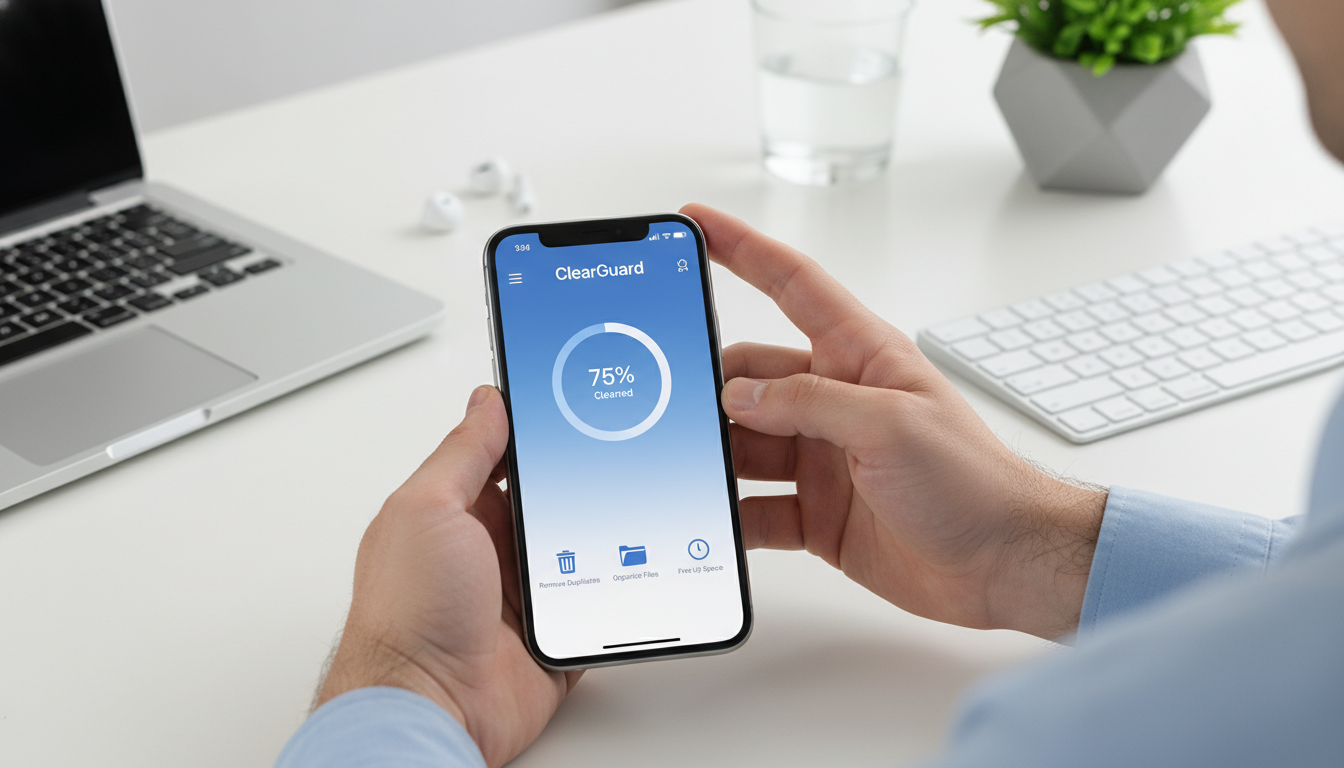
A manual cleanup is a great start, but it’s like tidying a room by only picking up items you can see from the doorway. You miss the dust bunnies under the bed and the clutter in the drawers. This is where a specialized tool like ClearGuard becomes essential, turning a multi-hour project into a task of minutes.
ClearGuard performs a deep, forensic scan of your iPhone’s storage, pinpointing wasteful files that are completely invisible in your Settings app. It excels at finding:
- Exact Duplicate Files: Not just similar photos, but identical documents, PDFs, and contacts saved in multiple locations.
- Hidden App Junk: Residual cache and temporary files from apps that manual deletion misses.
- Forgotten Large Files: It surfaces old downloads, presentations, and videos buried deep within the Files app or other document silos.
Compare the effort involved:
| Task | Manual Approach | Using ClearGuard |
|---|---|---|
| Finding Duplicate Photos | Scrolling through thousands of images side-by-side. | Instant scan with side-by-side previews for safe review. |
| Clearing App Cache | Deleting and reinstalling apps individually, losing settings. | Reviewing a unified list of cache from all apps, clearing with one tap. |
| Finding Large Old Files | Manually digging through folders in the Files app. | Viewing a smart “Large Files” list sorted by size and last accessed date. |
| Total Time Investment | 60+ minutes for a surface-level clean. | Under 5 minutes for a comprehensive, deep clean. |
The user “hack” discussed in the AOL.com article aligns with this automated approach. By systematically removing junk files, you give the iOS update a clean, optimized environment. This reduces the intense post-installation indexing and file system management that directly causes processor strain and battery drain.
Your Pre-Update Action Checklist
Once your storage is optimized, follow this protocol right before hitting “Update.”
- Verify Free Space: Ensure you have at least 10-15GB of free space. The update may only require 5GB, but the extra headroom prevents immediate post-update slowdowns.
- Create a New Backup: Back up to iCloud or your computer after your cleanup is complete. This ensures your backup archive is lean and doesn’t preserve the gigabytes of junk you just removed.
- Plug Into Power: Connect your iPhone to a charger. A failed update due to a dead battery can cause serious issues.
- Connect to Reliable Wi-Fi: Use a stable home or office network, not cellular data.
- Run a Final ClearGuard Scan: Do one last scan to clear any temporary files or caches generated during your preparation work. This gives the update the absolute cleanest slate.
Frequently Asked Questions (FAQ)
Q: How much free space do I really need before an update? A: While the installer might state a minimum (e.g., 2GB), you should aim for 10-15GB minimum. A study by the storage analysis firm Pure Storage found that devices with less than 10% free space experienced a 30% increase in system latency. The extra space ensures the update installs cleanly and your phone runs smoothly afterward.
Q: Is “Offload Unused Apps” a good solution? A: It’s a helpful first aid measure, but not a cure. It only removes the app’s core code, not its documents, data, or cache. For example, offloading a podcast app won’t touch your 8GB of downloaded episodes. A true cleanup must address the data itself.
Q: My “System Data” is still huge after all these steps. What now? A: If a restart and app updates don’t shrink it, the most effective method is a “reset and restore.” First, make an encrypted backup to your computer via Finder (Mac) or iTunes (PC). Then, go to Settings > General > Transfer or Reset iPhone > Erase All Content and Settings. After the erase, restore from your fresh backup. This rebuilds system files from scratch. Using ClearGuard before the backup makes this process faster.
Q: Can cleaning storage really fix battery drain? A: Absolutely. When storage is near capacity or heavily fragmented, the device’s storage controller and CPU must work significantly harder to read and write data. This increased activity demands more power. Clearing space creates a more efficient pathway for data, reducing background strain. The battery-saving “hack” shared by users, as noted by AOL.com, is rooted in this principle.
Preparing for an iOS update is less about making room and more about ensuring your phone’s performance, security, and battery life emerge intact. A targeted manual effort, amplified by a powerful automated tool, is the surest path to a seamless upgrade.
Stop worrying about update failures and battery woes. Get ClearGuard, clear your storage, remove duplicates, and organize your iPhone in just minutes. Download ClearGuard on the App Store